Hands-On Review: Huawei E5830s – Simple Mobile Router with Extra Capabilities

Author
Cerira
Reading time:
October 22, 2011

Use

Like a lot of routers on the market, E5830s equipped with a web-based management tools to configure various settings options in it. One the option settings are for Internet and WiFi connection. We can access the management tools to connect the computer that will be used for configuring the E5830s, either by using a USB cable or WiFi.

Device Driver R
To connect with the computers used E5830s via a USB cable, you must install the driver first. Drivers needed are already available in the unit E5830s and will immediately appearas a separate drive.

Once the computer is connected to the E5830s, we can call the management tools by typing the IP address of the device in the browser. Web-based management tools will directly open and ask for the password input.

Huawei E5 3G Wireless Modem 1316773619928 RThere are four main menus which are accessible from the initial appearance of a web-based management tools, namely the “Connection”, “SMS”, “SD Card”, and “Settings”. We will discuss the fourth menu, starts from the menu “Settings” which is a central configuration options in the settings E5830s.

Huawei E5 3G Wireless Modem 1316773619900 R

The first submenu that appears under the menu “Settings” is the “Quick Setup”. This submenu is simple “Wizard” provided by Huawei to set the main settings options E5830s quickly, namely for an Internet connection and wireless network.

Huawei E5 3G Wireless Modem 1316773619925 R
One of the six-step "Quick Setup".
Huawei E5 3G Wireless Modem 1316773619927 R
Summary of the configuration that has been done in the "Quick Setup" will appear in the final step.

In addition to setting a “Quick Setup”, Huawei also allows us to perform manual configuration options for Internet connection settings and the wireless network. Internet connection settings can be done through the submenu “Dial-up”, while setting a wireless network through the WLAN submenu.

Huawei E5 3G Wireless Modem 1316773619923 R
Dial-up connection settings can be done through the "Mobile Connection".

Selection of connection profiles can be done through the “Mobile Connection”. The profile can be used for these connections that set by the “Profile Management”, Huawei has provided some connection profiles of some of the local mobile operators. Of course, we can manually enter additional profiles if needed.

Huawei E5 3G Wireless Modem 1316773619903 R
The addition of a new profile in the "Profile Management" can be done simply by entering a few parameters in accordance with the provisions of this operator to the form.

Unfortunately, Huawei lock the “Dial-up Number” to “* 99 #”. Thus, E5830s only supports Internet access through GSM connections with dial-up number * 99 # and don’t allow other dial-up number.

Huawei E5 3G Wireless Modem 1316773619905 R
Other settings are available under the submenu "Dial-up" is to set the mobile network used.
Huawei E5 3G Wireless Modem 1316773619906 R
Setting the PIN Code that is used to access the SIM card. We can also set the PIN is automatically entered each time E5830s turned on.

Now, turn to the wireless network settings via the WLAN submenu. Various settings options associated with the wireless network, such as renaming the SSID, security, and wireless network mode can be done here.

Huawei E5 3G Wireless Modem 1316773619908 R
Basic settings for wireless networks, SSID name shown is the standard provided byHuawei, as shown on the sticker on the back of the device. Of course we can change it to another name.
Huawei E5 3G Wireless Modem 1316773619909 R
Advanced settings can be found in "WLAN Advanced Settings".

One option to consider other arrangements is DHCP. The use of DHCP will allow other devices to access the wireless network E5830s.

Huawei E5 3G Wireless Modem 1316773619911 RAfter dial-up configuration, WLAN, and DHCP is done, will E5830s can easily be used anytime and anywhere. We just need to turn on E5830s and other devices connect via the wireless network. E5830s will automatically connect to the Internet and share them to other devices connected to it.

Share
Tags:

Load Comments

Gadget

October 19, 2025 - 0

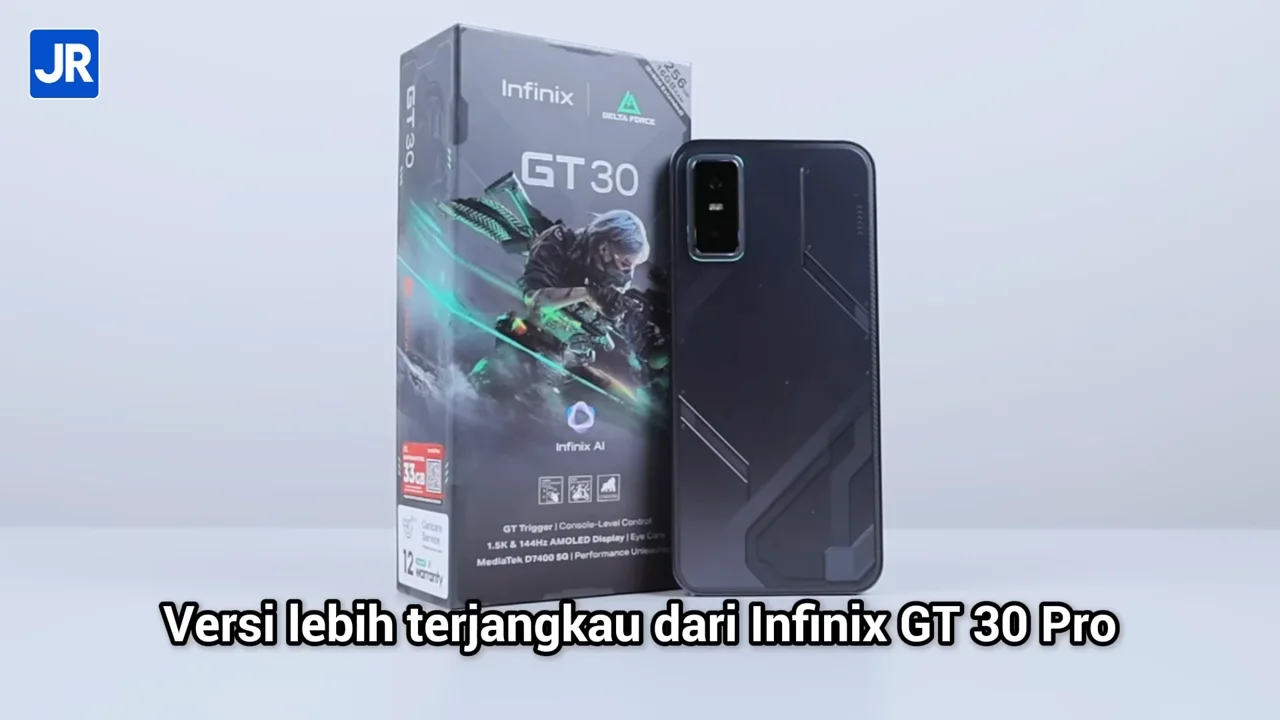
Review Infinix GT 30: Smartphone Gaming Padahal Aslinya All-Rounder!

Ini adalah Infinix GT 30! Ya, hape ini adalah versi…
July 10, 2025 - 0

Fossil Hadirkan Dua Jam Tangan Kolaborasi Marvel Fantastic Four

Fossil mengumumkan hadrinya dua jam tangan eksklusif hasil kolaborasi Marvel…
June 18, 2025 - 0

Review “Singkat” Samsung Galaxy S25 Edge: Smartphone Pemicu Pro-Kontra! Sebaik/Seburuk Itu?

Ini hape yang memicu Pro-kontra.  Banyak orang, bahkan kami pun…
June 17, 2025 - 0

Review Amazfit Active 2 Square: Smartwatch “Kotak” yang Klasik, Canggih, dan Baterai Awet!

Kalian sedang cari smartwatch bentuk kotak yang canggih, baterai irit,…

Laptop

June 28, 2026 - 0

Review Acer Predator Helios Neo 16S AI: Prosesor Baru, Lebih Efisien, Bodi Tipis, Tetap Powerful!

Bodi Form Factor Clamshell Material Menggunakan Aluminum untuk cover bagian…
June 26, 2026 - 0

Review ADVAN AI Gen Ultra T: RAM 16 GB, Prosesor Intel Core Ultra, Harga Cuma Rp 9 Jutaan?!

Bodi Form Factor Clamshell atau Laptop Klasik Material Kombinasi Logam…
June 23, 2026 - 0

Review ASUS Zenbook A14 (UX3407) 2026: Laptop Snapdragon X2 Elite Paling Ringan, Irit, & Kencang

Bodi ASUS Zenbook A14 (UX3407) 2026 Form Factor Clamshell Material…

Gaming

June 26, 2026 - 0

GTA 6 Diklaim Miliki Performa Terbaik di PS5 Pro

Informasi baru mengungkap GTA 6 di PS5 Pro akan mendapat…
June 26, 2026 - 0

Xbox Kembali Naikkan Harga Console Hingga $150

Microsoft kembali menaikkan harga Xbox Series X dan Series S…
June 25, 2026 - 0

Valve Dorong SteamOS Untuk Ubah PC Gaming Jadi Console

Valve memperluas SteamOS ke PC gaming dengan rangkul NVIDIA demi…
June 25, 2026 - 0

Valve Ungkap Alasan Tingginya Harga Steam Machine

Valve menjelaskan alasan Steam Machine dibanderol di atas $1000, menyoroti…